Printing coloring pages is simple — but getting them to look good on paper requires a few small details.
A coloring page that looks beautiful on your screen may not always print well. I’ve seen many designs lose their quality because of blurry files, incorrect sizing, poor paper choices, or printer settings that were never adjusted.
Whether you are printing coloring pages for your kids, classroom activities, personal hobbies, or your own printable projects, this guide will show you how to get clean lines, the right size, and better coloring results.
How to Print Coloring Pages (Quick Answer)
To print coloring pages successfully:
Download the original high-quality file
Choose the correct paper size
Select paper based on your coloring tools
Adjust printer settings to maintain the right scale
Print a test page before making multiple copies
Most printing problems come from one of these five steps.
Step 1: Use a High-Quality Coloring Page File
Before changing printer settings, make sure your coloring page file is suitable for printing.
This is one of the most common mistakes people make.
A coloring page may look sharp on a phone or computer screen, but once printed, low-quality files can become:
Blurry
Pixelated
Difficult to color
Missing fine details
For the best results, use:
PDF files whenever possible
High-resolution PNG images
Original downloads instead of screenshots
Avoid printing screenshots from Pinterest, Google Images, or social media. These images are often compressed and designed for online viewing, not physical printing.
A good printable coloring page should have:
Clear black outlines
Enough white space
Simple coloring areas
Good contrast
Step 2: Choose the Right Coloring Page Size
The next important step is making sure your coloring page matches your paper size.
A common problem is that the design looks fine digitally but prints with:
Large empty margins
Cropped edges
Incorrect proportions
The most popular coloring page sizes are:
US Letter Size
8.5 × 11 inches
This is the most common size in the United States.
Best for:
Kids’ activities
School worksheets
Home printing
A4 Size
210 × 297 mm
Common internationally.
Best for:
Printable worksheets
Home printers worldwide
For high-quality printing, coloring pages should ideally be created at:
300 DPI
This keeps the outlines sharp and prevents blurry results.
Step 3: Choose the Best Paper for Coloring Pages
The paper you choose can completely change the coloring experience.
A paper that works well with crayons may not perform well with markers. A detailed adult coloring page may feel much better on smooth paper than standard printer paper.
Here are my recommendations based on different uses.
Regular Printer Paper (75–90 GSM)
Best for: Kids, classrooms, and everyday coloring
Regular printer paper is the easiest and most affordable option.
Advantages:
✓ Easy to find
✓ Low cost
✓ Works well with crayons
✓ Good for printing many copies
The limitation:
It is not ideal for markers because ink can easily bleed through.
My recommendation:
Use regular printer paper for:
Children’s activities
Quick coloring sessions
Classroom projects
For most kids, this paper is completely sufficient.
Cardstock (90–120 lb)
Best for: Markers, crafts, and finished artwork
Cardstock creates a more premium feeling.
The thicker surface helps:
✓ Reduce marker bleeding
✓ Make the page more durable
✓ Keep finished artwork in better condition
The downside:
More expensive
Not every printer handles thick paper well
My recommendation:
Use cardstock when the coloring page is something you want to keep, display, or use with markers.
Matte Paper
Best for: Colored pencils and detailed coloring pages
Matte paper is often the best choice for detailed coloring.
The smooth surface helps with:
✓ Better color blending
✓ More precise shading
✓ Easier control over small details
It works especially well for:
Mandala coloring pages
Adult coloring pages
Detailed illustrations
My Printing Test: Regular Paper vs Cardstock vs Matte Paper
One thing I learned after printing many coloring pages is that the same design can feel completely different depending on the paper.
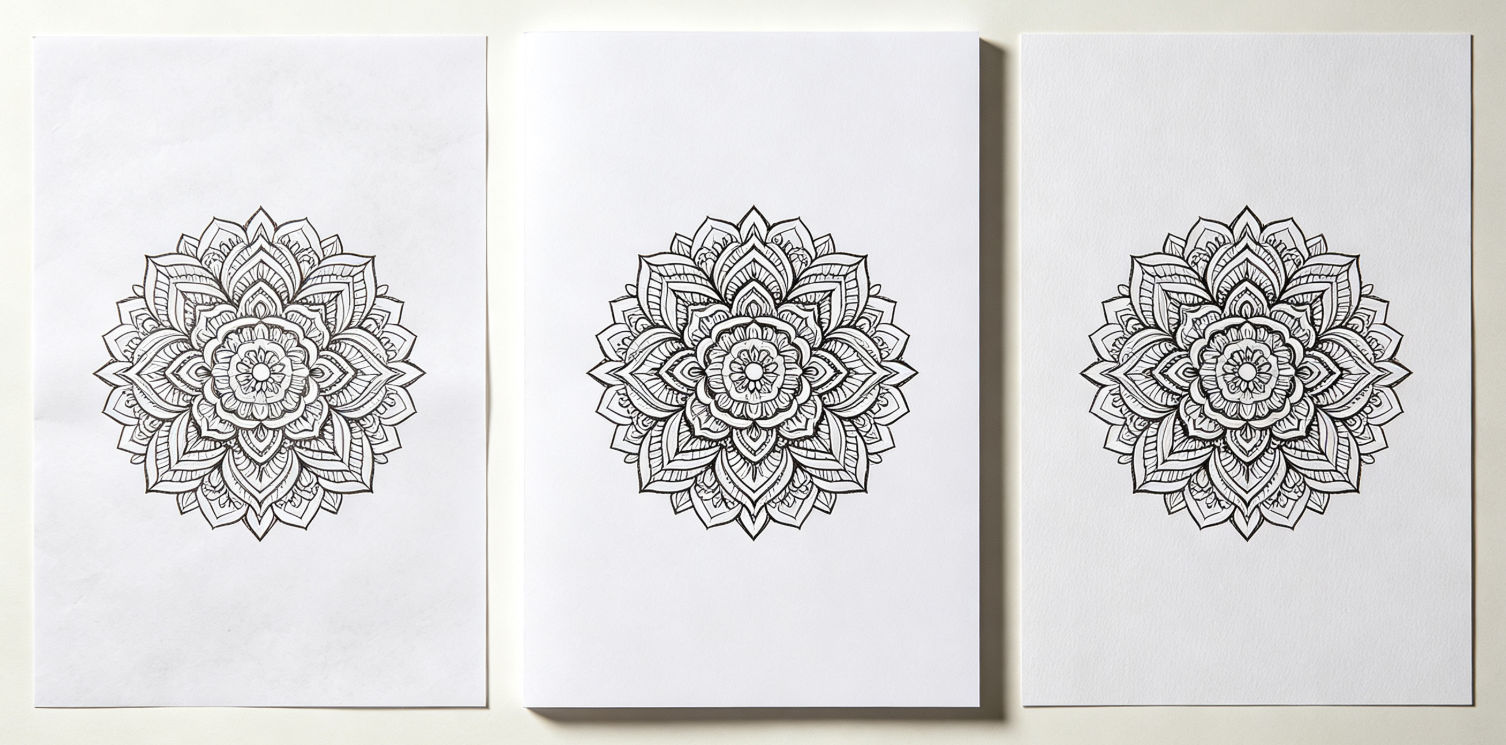
To compare the differences, I printed the same coloring page on three common paper types:
Regular printer paper
Cardstock
Matte paper
Here is what I noticed.
1. Regular Printer Paper
For simple coloring activities, regular paper performed better than expected.
Crayons and basic colored pencils worked well, and the page was comfortable for everyday use.
However, when I tested markers, the limitations became obvious:
Ink showed through more easily
The paper felt less durable
The finished artwork looked less polished
Best choice: Kids, quick activities, classroom printing.
2. Cardstock
Cardstock created the biggest difference when using markers.
Compared with regular paper:
Lines felt cleaner
The page handled more pressure
The final artwork looked more professional
The thicker surface also made the coloring page feel more like a finished craft project.
Best choice: Markers, crafts, artwork you want to keep.
3. Matte Paper
For detailed coloring pages, matte paper was my favorite.
The smoother surface made colored pencils easier to control, especially when blending different shades.
It worked particularly well for designs with:
Small sections
Detailed patterns
Complex illustrations
Best choice: Adult coloring pages and detailed artwork.
My Simple Paper Recommendation
If you are unsure what paper to use:
Purpose | Best Paper |
|---|---|
Kids coloring | Regular printer paper |
Marker coloring | Cardstock |
Detailed coloring | Matte paper |
Professional printable products | Premium matte paper |
The most expensive paper is not always the best option.
The right paper depends on the coloring tools and the experience you want to create.
Step 4: Adjust Your Printer Settings
Even with a great file and good paper, printer settings can affect the final result.
Most printers are optimized for documents, not coloring pages.
Before printing, check these settings.
Paper Size
Select the correct paper size:
Letter
A4
Custom size
Using the wrong size may cause cropping or incorrect margins.
Scale Settings
This is one of the most important settings.
I recommend:
Actual Size (100%)
Avoid:
Fit to Page
unless the coloring page does not match your paper.
Fit to Page may shrink your design and make the coloring area smaller than expected.
Print Quality
Choose:
High Quality
Best Quality
Fine Printing
Higher quality settings create:
Cleaner outlines
Better details
Stronger contrast
Black and White Settings
For black-and-white coloring pages:
Choose:
Black Ink Only
Grayscale
This usually produces stronger outlines and saves color ink.
Step 5: Always Test Print First
This small step can save a lot of wasted paper and ink.
Before printing:
A whole coloring book
Multiple classroom copies
A large batch of printable pages
Print one sample first.
Check:
Are the lines clear?
Is the page centered?
Is the size correct?
Does the paper work with your coloring tools?
A one-minute test print can prevent many problems.
Common Coloring Page Printing Problems
Why Does My Coloring Page Look Blurry?
Common reasons:
Low-resolution image
Screenshot instead of original file
Compressed image
Solution:
Always use the original high-quality file.
Why Are My Coloring Page Lines Too Thin?
This usually happens because the design was created for screen viewing rather than printing.
Solutions:
Choose coloring pages with stronger outlines
Increase print quality
Avoid enlarging small images
Why Is My Coloring Page Printing Too Small?
The most common reason is:
Fit to Page scaling
Change your printer settings to:
Actual Size
100% Scale
Why Do Markers Bleed Through the Paper?
Regular printer paper is often too thin for markers.
Try:
Cardstock
Thicker matte paper
Adding another sheet underneath
How to Print AI-Generated Coloring Pages
AI-generated coloring pages are becoming increasingly popular, but printing them requires extra attention.
A general AI image generator creates images mainly for viewing.
A printable coloring page needs to work on paper.
Before printing an AI coloring page, check:
Clean Lines
The design should have:
Clear outlines
Strong contrast
Closed shapes
Simple Details
Too many tiny details may look impressive digitally but become frustrating when coloring.
Correct Size
Make sure the image matches your intended paper size.
Tools designed specifically for printable coloring pages, such as ColorByte AI, focus on creating designs with cleaner outlines and print-ready formats.
Frequently Asked Questions
What is the best format for printing coloring pages?
PDF is usually the best format because it preserves the original size and quality.
What size should coloring pages be printed?
The most common sizes are:
US Letter (8.5 × 11 inches)
A4 (210 × 297 mm)
Can I print coloring pages from Pinterest?
Yes, but make sure you are using the original printable file and have permission to use the artwork.
Avoid screenshots because they often print poorly.
What DPI should printable coloring pages be?
300 DPI is the recommended standard for high-quality printing.
Can I print coloring pages at home?
Yes. A regular home printer can produce great results with the right file, paper, and settings.
Final Thoughts
Printing coloring pages does not require expensive equipment.
The biggest improvements usually come from:
Using a high-quality file
Choosing the right paper
Adjusting printer settings correctly
Testing before printing multiple copies
A good coloring page is not only about the design itself. The final paper experience matters too.
With the right preparation, even a simple home printer can create coloring pages that are clean, enjoyable, and ready for hours of creativity.
And if you want to create your own personalized coloring pages, tools like ColorByte AI can help you turn ideas and photos into print-ready designs in minutes.